01 · Start here
Quick start
- 1Open CineVoid
Launch CineVoid from your Meta Quest App Library and wait for the browser panel to appear.
- 2Choose a source
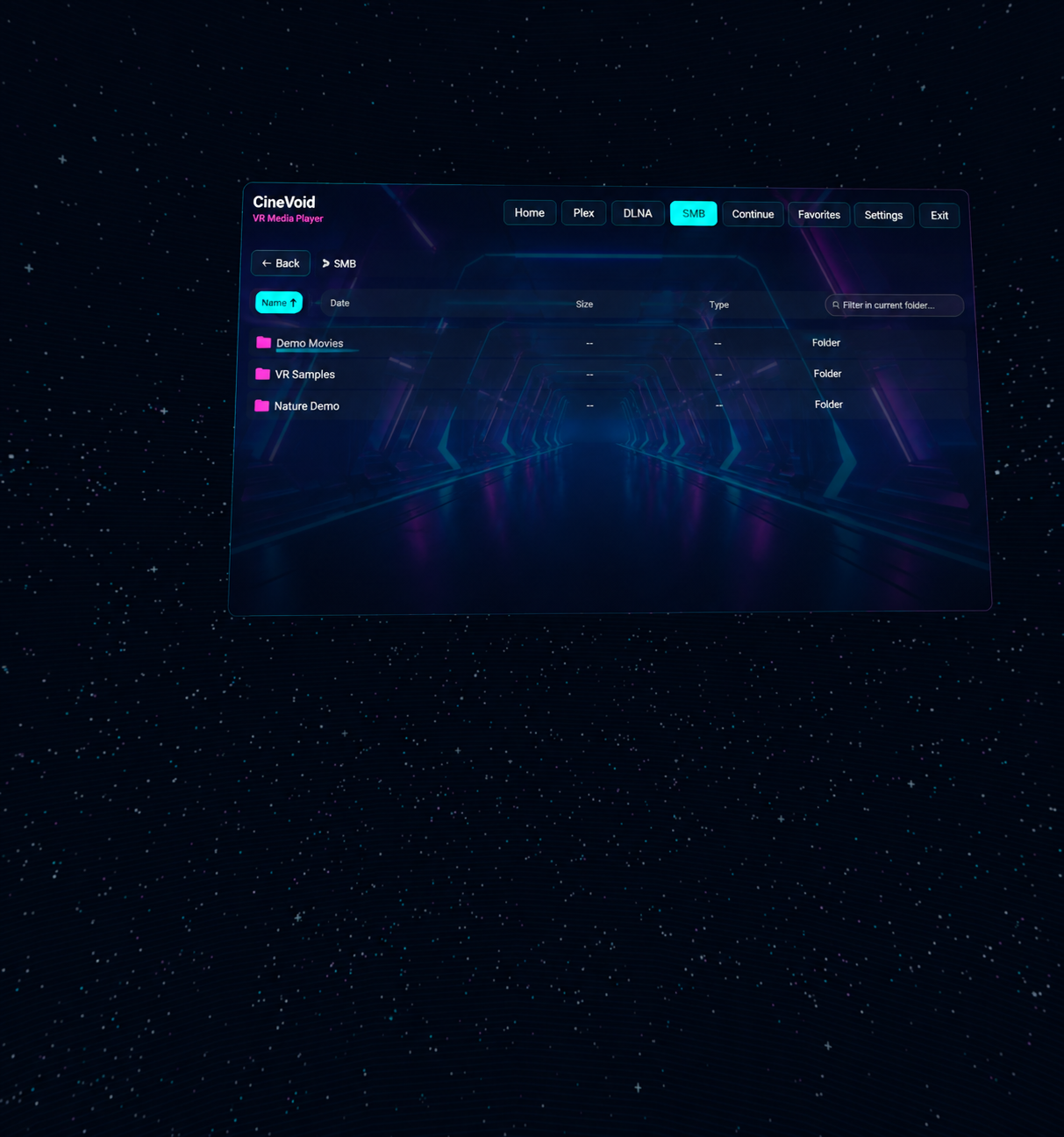
Select Plex, DLNA or SMB from the top navigation. You can return to recently played media through Continue.
- 3Select a video
Aim at an item and press either trigger. CineVoid opens the player and places the controls below the screen.
- 4Make it comfortable
Open the Screen flyout to change distance, size, projection or background. Hold B or Y for two seconds whenever you want a complete reset.
02 · Touch controllers
Common actions stay on the controller
Press while pointing at a control. Press on empty space during playback to show or hide the player console.
Toggle playback without opening a menu.
Jump backward or forward by the interval selected in Settings.
Bring a flat or curved screen closer, or move it farther away.
Press briefly to toggle the console.
Hold for two seconds to recenter the room, video screen and player controls.
With controls hidden, hold grip and move the controller to rotate an Equi 180 or Equi 360 video.
03 · Your library
Connect a media source
Plex
Open Plex, choose Link Plex and request a link code. On a phone or computer, open plex.tv/link, sign in and enter the code shown in CineVoid. Return to the headset and select your server.
DLNA / UPnP
Make sure the Quest and media server use the same network. Open DLNA and select Scan network. If an older local server requires unencrypted HTTP, enable it only on trusted Wi-Fi under Settings → Network.
SMB / Windows share
Open SMB and choose Add share. Enter the host name or IP address, credentials when required, and the actual exported Share name. The share name is not your Windows username. If automatic share listing is unavailable, type the share name manually.
Favorites and Continue
Select the star beside a movie or SMB folder to save it. Continue shows media with stored playback progress, while Favorites provides quick access to saved locations and titles.
Supported unencrypted Blu-ray/DVD ISO or IMG images and non-password-protected RAR archives can be opened from a compatible file source. Commercial disc encryption, original disc menus and password-protected archives are not supported.
04 · During playback
The player console
The compact bar contains the timeline, previous, play/pause and next controls. The cube and screen icons provide quick stereo and projection switching. Four round buttons open focused flyouts above the bar.
Screen
Background, position, distance, size, projection, aspect ratio and stereo layout.
Subtitles
Direct track selection, Off, text size, position, color and outline.
Audio
Direct audio-track selection, detected codec, volume and mute.
Playback
Speed, repeat, shuffle, autoplay and automatic control hiding.
05 · Picture
Screen, 3D and immersive projection
CineVoid can detect common filename tags such as Movie.180.SBS.mkv, Clip_360_TB.mp4 and Concert.MONO360.mp4. You can always override the detected mode from the Screen flyout.
06 · Language and sound
Choose audio and subtitles directly
Audio
Open the Audio flyout and select a track from the scrollable list. The detected codec appears below it. Use the speaker button to mute, or adjust the volume slider.
Subtitles
Open the Subtitles flyout, choose a track or Off, then adjust text size, vertical position, color and outline. Text and supported bitmap subtitles are displayed in the virtual scene.
Check that the correct audio track is selected, the CineVoid volume is above zero and the Quest system volume is audible. Codec fallback may take a moment when a complex disc stream starts.
07 · Preferences
Settings that follow you
- Playback: resume progress, pause on focus loss and choose skip intervals.
- Comfort: automatically recenter player controls after focus or tracking changes.
- Browser: choose grid density, list view, sorting and automatic thumbnail generation.
- Projection: enable or disable automatic format detection from filenames.
- Network: allow local HTTP only when required on trusted Wi-Fi.
- Language: choose the interface language.
- Changelog: review new features, fixes and format support by version.
08 · Fix common issues
Troubleshooting
The controls are out of position
Hold B or Y for two seconds. CineVoid resets the room, screen and controls in front of you. You can also use the recenter control in the Screen flyout.
The controller ray or stick stopped responding
Open and close the Meta system menu once, then hold B or Y for two seconds. If tracking was interrupted, make sure the room has enough light and the controller is visible to the headset cameras.
A DLNA or Plex server is visible but playback is blocked
Some older local servers use HTTP. On a trusted home network, open Settings → Network and enable local HTTP streaming. Public unencrypted destinations remain blocked.
SMB connects to the host but not the folder
Enter the exported share name in Share name. This is usually the name configured in Windows or on the NAS, not the account username or a full local drive path.
An ISO, IMG or RAR file does not open
Commercially encrypted discs, original disc menus and password-protected archives are unsupported. Try a non-encrypted image or archive and report reproducible failures through Support.
Tell us the CineVoid version, Quest model, media source, container and codec shown in the player.